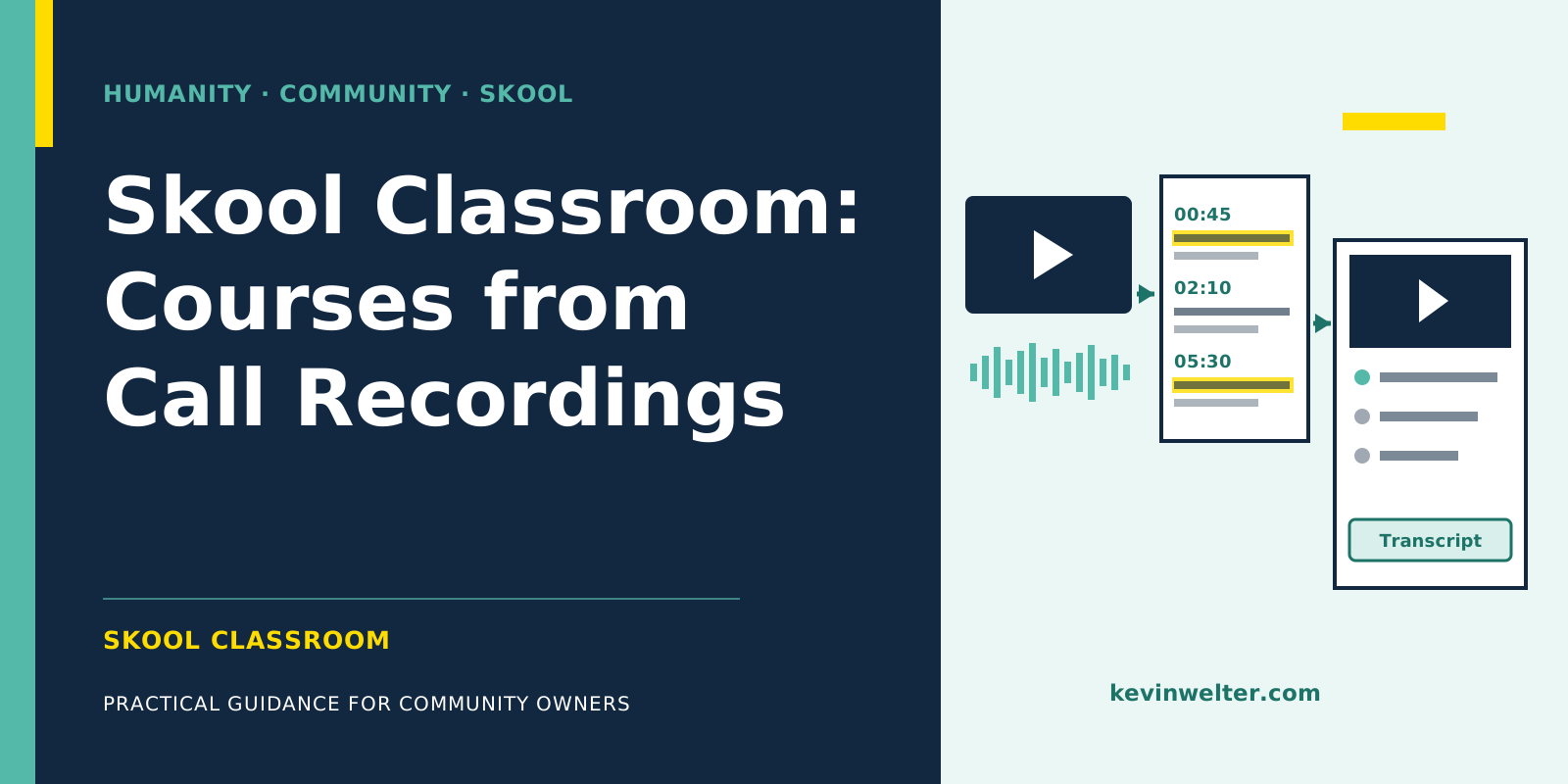
The Skool Classroom is the course area of a Skool community. A course is made of pages and folders, up to 200 pages per course, with unlimited courses. You upload videos directly to a page; according to Skool, hosting is included on both plans, and you can still embed YouTube, Vimeo, Loom or Wistia instead. Timestamps in the text field under the video become chapters, and a transcript added as an attachment makes the video searchable within your group. For each course you decide who can see it. That's how a call recording becomes a lesson: record the Skool Call, download the recording within 14 days, transcribe it outside Skool, write key points, chapter markers and tasks from it, then put video and text on a page in the Classroom. An AI can handle the transcribing and writing. Skool describes no official way to create lessons automatically, so if you want to stay within Skool's rules, you create the lesson yourself. In my case an AI agent does that in my account in the browser, even though Skool's policy prohibits it; I do it deliberately and at my own risk, more on that below.
Since July my calls have run directly in Skool instead of Zoom, and in my community Claude Practitioners the recordings are part of Premium, in a class of their own. The community runs in German. My AI employees produce these lessons, from the transcript to the finished page in Skool. I start the workflow, and it clears sensitive passages with me first. What this division of labour looks like across the whole community is in Community Management with AI Employees.
What the Skool Classroom can do
Two attachments are especially useful for recordings. According to Skool, the transcript makes the video "searchable" in your group. And the pinned community post connects the lesson with the discussion in the feed.
Skool course creation, step by step
- Create the course and choose the access. Before the first video, decide who should see it: all members, one pricing tier only, from a certain level, or only after a few days. How levels work as an unlock is in Skool Levels and Gamification That Work.
- Create folders as chapters. One folder per topic or per format, with the pages underneath.
- Create a page and upload the video. According to the help center, Skool automatically generates English captions for videos with sound; members can change speed and quality.
- Write the text under the video. This is where the summary, the chapters with timestamps and the tasks go.
- Add attachments. Transcript, worksheets, links, the matching feed post.
- Publish and announce. According to the help center, you toggle the page to "published" so members can see it. A short post in the feed tells them there's something new.
Skool's help center describes no official way to create lessons through an interface (as of September 2026); the official automations cover members and course access. What works and what doesn't is in Skool API and Automation: What Works. Where the Classroom fits when you set up a new community is shown in How to Start a Skool Community.
Skool video upload and video hosting
With Skool's own video hosting, uploading is the direct route: videos go onto a page in the Classroom or into a post, and the pricing page lists "Unlimited videos" on both plans. If your videos already live on YouTube, Vimeo, Loom or Wistia, you can keep embedding them; for Vimeo, you add skool.com as an allowed domain.
For recordings of a Skool Call: Skool can record the call, and according to the help center you have 14 days to download the recording before it expires. Then you upload it to a page in the Classroom or, according to the help center, share it in a post. The help center doesn't describe the recording being filed in the Classroom automatically. So plan the download as a fixed step.
From call to lesson: my workflow
In my business there's a fixed seven-step workflow between recording and lesson:
- Check the recording. When was it recorded, how long is it, which format was it (implementation call, coffee call, hot seat)? And has this recording already been processed?
- Transcribe locally. The transcript is created with Whisper on my Mac; the audio file stays on the machine for speech recognition. For the hot seat at the end of August, about 55 minutes of recording were transcribed in about two minutes. Only this step is local: Claude then processes the text.
- Write the lesson text. The transcript is read in full, then a page is written from a template: what it was about, eight to ten key points, chapters with timestamps every 45 to 90 seconds, tasks for members, and the full transcript. Names are checked against the name tags in the video. The page is stored in Notion and later, with the same content, as a lesson in Skool.
- Clear sensitive parts first. If someone talks about private matters on the call, such as health, money worries or conflicts, that gets cleared with me before anything is published. It stays out of the summary anyway.
- Create the lesson in Skool. My workflow creates the lesson, video included, in my account, the way I would click myself. It goes live right away, which is why the safeguard sits in step 4.
- Publish the announcement post. From a fixed template: a title, a paragraph on when the call was and what's now in the Classroom, three to five topics with their benefit, and at the end the next event or a question. No real names of participants, nothing private from the call. A test run with a screenshot comes first, and "email all members" stays off.
- Report back. At the end I get the links and a short list of what I should check: names, cut-off recordings, sensitive passages.
Steps 5 and 6 need a clear disclaimer. Skool's platform policy prohibits bots that post, comment or message others, and automation requests; its account security rules prohibit sharing login credentials, even with your own team. As consequences, Skool lists content removal, restrictions and temporary or permanent account suspension. I do it deliberately, only in my own account, and I carry the risk. To me it's support that does nothing I wouldn't click myself; that's my view, not Skool's. If you don't want that, let the AI prepare and create the lesson and the announcement yourself, as described further down. How I separate official automation from this route is in Skool API and Automation: What Works.
The same workflow produces more than archive lessons. In September 2026 a 20-minute bonus lesson, "Meta setup on video, click by click", was added to Conny's class, created from an implementation call, with chapter markers. A call in which someone solves a question live is, in my view, already half a lesson.
Zoom recordings: what's different
For the workflow it doesn't matter whether the recording comes from a Skool Call or from Zoom; Skool explicitly allows Zoom and Google Meet as event locations. You start with a video file, and from there the steps are the same. With Zoom you additionally check where the recording is stored and how to download it.
Before you record at all, get the participants' consent. What applies legally, from a German perspective, is in Transcribing Calls: What German Law Says; that's not legal advice. Transcribing locally has the advantage that the audio file stays on your computer for speech recognition. What happens to the text afterwards, who processes it and where it's stored, is a separate decision. How to do that with Whisper for free is in Convert Audio to Text for Free. If you'd rather have a service or a person create the transcript, Getting a Transcript Made: Your Options compares the routes. That post is about the transcript; this one is about what it becomes in Skool.
Why the full transcript belongs in the lesson
The old rule in my business was three to five bullet points and a link. My template now marks that rule explicitly as outdated. The lesson carries the complete text, with the reasoning from the template, translated from German: "No shortening of the transcript. It is the basis for search."
That matches what Skool itself says about the transcript attachment: it makes the video searchable within the group. A member who remembers a sentence from a call finds the spot instead of scrolling through an hour of video. The chapter markers then lead straight to the right minute.
What Conny prepares for me and what I decide
The writing around the recordings is the job of Conny, my AI editor in chief. In August she started transcribing call recordings and filing the write-ups in Notion, and she drafts the posts about them in my voice. An example of the approval step: for the hot seat on 31 August 2026, Conny delivered a draft with campaign figures. I posted a shortened version without the figures. How such posts come together is described in Writing Skool Posts with AI, with Approval.
For your own setup, if you don't want to carry the risk described above: the AI may prepare the transcript, lesson text, chapter markers and post draft outside Skool. You create the lesson in Skool and post the announcement yourself; Skool describes no official route for either. That's also the cleanest form of approval.
Frequently asked questions
How do I create a course in the Skool Classroom?
Create a course, choose the access, structure it into folders and pages, and upload videos with text underneath to the pages. According to the help center, you can have up to 200 pages per course and unlimited courses. Attach transcripts, files and links as addenda. This works on both the Hobby and the Pro plan.
Can I upload videos directly to Skool?
Yes. According to Skool's help center, native video hosting is included in your plan, and videos go straight onto a Classroom page or into a post. The pricing page lists "Unlimited videos" for Hobby and Pro. For videos with sound, Skool automatically generates English captions. YouTube, Vimeo, Loom and Wistia can still be embedded.
How long can I download a Skool Call recording?
According to the help center, for 14 days; after that it expires. Within that window you download the recording and upload it to a page in the Classroom. The help center doesn't describe automatic filing in the Classroom. If you record regularly, plan the download as a fixed step after every call.
How do I add chapters to a Skool video?
With timestamps in the text field under the video. According to Skool's help center, Skool turns them into chapters. In my lessons the chapters come every 45 to 90 seconds, each with one line on what that part is about. That way members jump straight to the part of the call they care about.
How do I get a transcript of a Zoom recording into Skool?
Download the recording as a file and transcribe it, for example locally with Whisper. On my Mac, about 55 minutes of recording took about two minutes. Attach the transcript to the lesson; according to Skool, that makes the video searchable within the group. Get the participants' consent to the recording beforehand.
Where to go from here
Take your last call recording and write three things for it: what it was about, five chapters with timestamps, and one task for members. That's your first lesson, even without any automation. If you want to set up the preparation, meaning transcript, lesson text and post draft, with an AI employee like Conny, you'll find her in my community Claude Practitioners, to build yourself or as a ready-made template in Premium. And if you get stuck during setup: that's exactly the kind of question you can ask in the feed there or bring to the Thursday call.