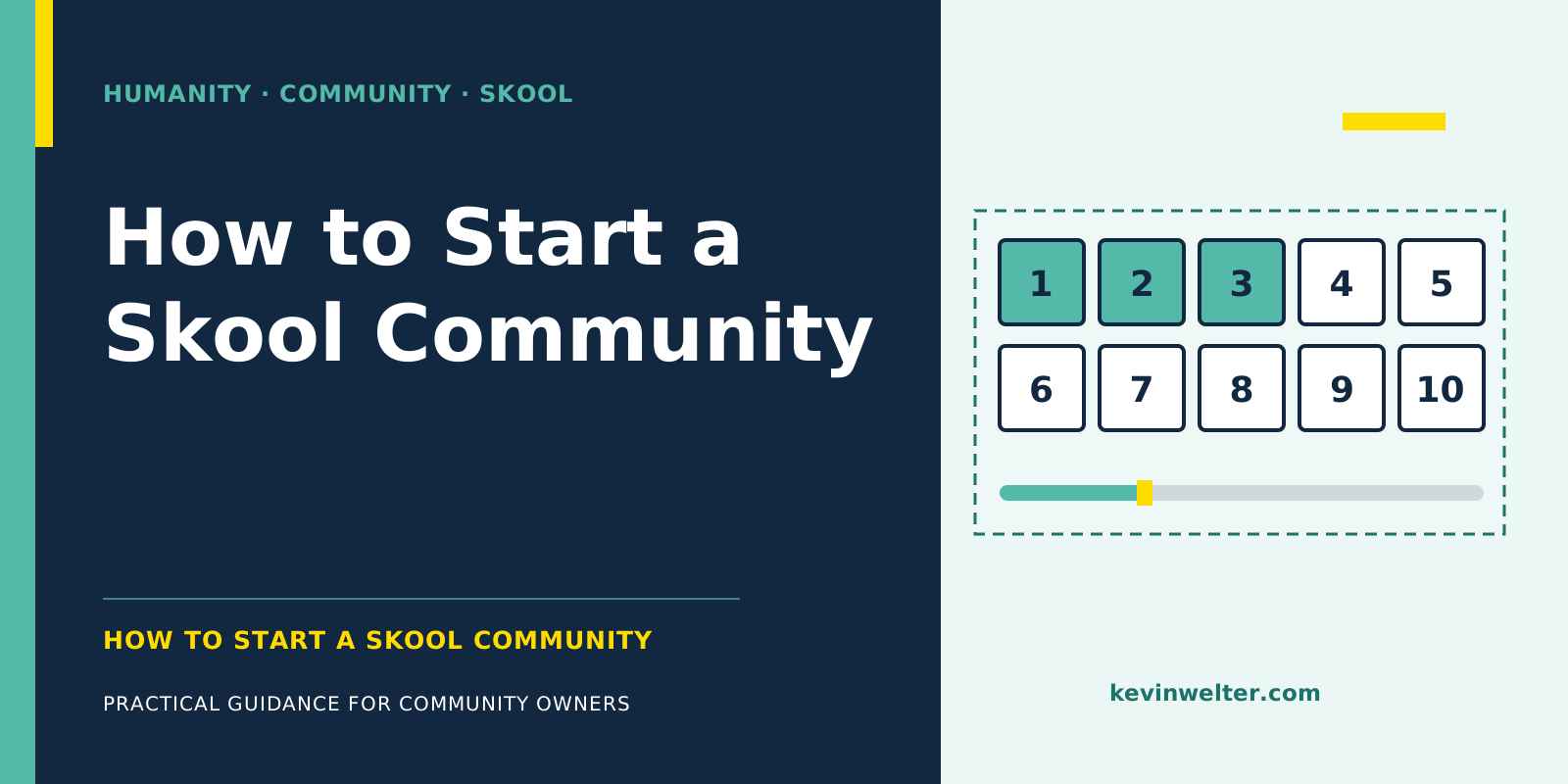
You start a Skool community in ten steps: begin the free trial, pick a name and address, fill in the About page, set up pricing and payouts, add membership questions, create categories for the feed, build a first course in the Classroom, put a first event on the calendar, switch on the right plugins, and finally write a first post and invite members. Owners get 14 days free; then Hobby ($9 a month) or Pro ($99 a month) continues as a subscription, as of September 2026. The About page deserves the most care, because Skool requires it before your group can appear in its directory.
I run my own community, Claude Practitioners, on Skool. I created it on 28 April 2026, free at first; since mid-August it has been paid. As of September 2026 it holds 20 courses with 282 lessons, and the content is in German. For me, setting it up was the start of a division of labour: my AI employees prepare, I decide. What that looks like across the whole community operation is in Community Management with AI Employees. If Skool is new to you, read Skool: What It Is and How It Works first.
Before you start: plan, trial and business type
Settle three things before the 14-day trial starts ticking.
Hobby or Pro. According to the pricing page, both plans include unlimited members, courses, videos and live calls. The difference is the transaction fee (Hobby 10% plus 30 cents per payment, Pro 2.9% plus 30 cents) and the features: custom URL, member affiliates, AutoDM, onboarding video and Zapier are Pro only. The full calculation with examples is in Skool Pricing: Hobby vs Pro and the Fees.
Free or paid. You don't decide that with the plan but with the price of your community. My reason for switching in August, translated from German: "Free means non-committal. And non-committal doesn't hire an employee." If you change the price later, existing members keep their current price according to Skool, even if that price was zero. How to weigh this for your own model is in Skool Community: Free or Paid?
Can your offer be paid through Skool? Skool keeps a list of business types its payment system does not allow, according to Skool mostly because of US federal law, card network rules or payment partner restrictions. It includes pyramid schemes, jewelry and beauty products and, word for word, "Consulting firms". Skool says the list can change without notice. Read it before you set a price, and ask Skool's support if in doubt. This is not legal advice.
How to start a Skool community: the ten steps
Name, address and the Skool About page
Pick the name your audience would search for.
Logo, cover image and, on Pro, a custom URL live under SETTINGS > General. The first change is included, each further one costs $100.
The Skool About page is your shop window, in Skool's words a landing and checkout page. Skool suggests images or an explainer video plus a description of what the group is and what members get. Three points from the help center are worth knowing:
- Links in the description don't work. Say in sentences what's inside instead.
- No complete About page, no Discovery. Skool requires it before your group can be listed in its directory.
- The price shown is net. Skool charges in US dollars and adds EU VAT at checkout.
Operators in Germany or the EU also need to check items such as legal notices and privacy. That's not legal advice either.
Pricing and payouts
According to the help center, Skool offers five pricing models: free group, subscription (monthly or annual, optionally with a seven-day trial for members), freemium, tiered pricing and one-time payment. I use tiers myself: Standard costs $9 and Premium $45 a month, cancel any month, as of September 2026.
For payouts you connect a bank account to your Skool account under SETTINGS > Payouts > Add Payout method. Outside the US, Germany included, Skool's newer payout system applies (newer help article): pick your country, confirm with an emailed code, add personal details matching your bank's records, complete the account verification Skool calls mandatory, then add the bank account. Stripe Express is now the US setup only. Payouts go out every Wednesday in local currency, without conversion fees according to Skool; the first can take up to 14 days.
Membership questions and access
Membership questions are available on both plans. You can ask up to three, answered as a text box, multiple choice or email address, with only one question allowed to ask for an email. Anyone who wants to join has to answer all of them. Skool's own rule of thumb: harder questions lower the conversion rate but bring better-matched members.
One of my three questions is: "How did you hear about the community?". On the first documented purchase through my website, in September 2026, the answer was "Google search". What to do with the answers in the first days is covered in Skool Onboarding: The First Seven Days.
Feed, Classroom and calendar: the basic structure
In the feed you can create up to ten categories and pin up to three posts to the top. For each category you set whether members or only admins can post and how posts are sorted. A pinned start post stays on top regardless.
A few categories are enough to begin with, for a coaching community say: Start here, Questions, Wins, Announcements.
The Classroom is the course area. A course is made of pages and folders, up to 200 pages per course, with unlimited courses. For each course you set the access: open to everyone, from a certain level, by one-time purchase, after a number of days since joining, or only for selected members. You upload videos directly to Skool; hosting is included on both plans. How a call recording becomes a course is in Skool Classroom: Courses from Call Recordings. Levels as an unlock are explained in Skool Levels and Gamification That Work.
To start, one course filling a new member's first hour is enough.
On the calendar you create events. The default location is Skool Call, which the help center says is included on both plans; Zoom, Google Meet or an address for an in-person meetup work too. You can record a Skool Call and download the recording for 14 days.
Plugins: what to switch on at the start
Skool's help center lists these features as plugins, each with its plan:
You switch plugins on under SETTINGS > Plugins. For the start, membership questions matter, plus AutoDM and the onboarding video on Pro. Skool itself recommends the two level locks only for large groups, the chat lock from around 1,000 members. What Skool connects officially and what it doesn't is in Skool API and Automation: What Works. If a plugin leaves you puzzled, you're not on your own with it: in my community you can ask in the feed or bring the question to the weekly call.
The first members and Skool Discovery
You can invite by email, by CSV file, through Zapier or with the link to your About page. According to the help center, email, CSV and Zapier invites grant access without a purchase; for paid communities you share the About page link instead.
Discovery is Skool's public directory. New groups only appear there once they meet a minimum threshold and pass a review; the details are in the FAQ below.
Growth Boost is on by default: on recurring payments from members Skool brings you, you pay a commission on top of the transaction fee, 30% by default, selectable up to 70%. According to Skool, a higher rate brings more traffic; see Skool Growth Boost: Bidding Up to 70%. Switch it off under SETTINGS > Discovery; Skool advises against it for high-ticket offers.
And measure from day one where visitors come from. Skool attributes by last touch; according to the help center, link-in-bio tools, redirects and URL shorteners make visitors show up as "direct". On my website, the Skool links carried the noreferrer attribute for a long time, so Skool counted the website as direct traffic. Since the attribute was removed, my website shows up as its own source; on top of that, every link carries a tag per placement.
What Conny prepares for me and what I decide
Announcements, messages and images around the community are drafted for me by Conny, my AI editor in chief. She designed the lead image for my About page and revised it from my dictation. Every Premium class has a prepared announcement, and her new welcome message is waiting for my approval. Member voices go on the About page only with their consent.
The rule behind it: Conny drafts, I approve, and what appears in my name is my decision. I recommend the same to you. Skool's official automation covers members, invitations and course access, not posts or lessons. Some steps are still done by AI agents in my own account in the browser, the way I would click myself, such as creating lessons from call recordings and the announcement post for them. Skool's policies prohibit bots that post, comment or message, and sharing credentials; Skool lists consequences up to account suspension. I do it deliberately and carry the risk. If you don't want that, let the AI prepare and take the step in Skool yourself.
Frequently asked questions
How much does it cost to create a Skool community?
The first 14 days are free. After that you pay Hobby at $9 a month plus 10% and 30 cents per payment, or Pro at $99 a month plus 2.9% and 30 cents (3.9% and 30 cents on single payments above $900), as of September 2026. The fees only apply when members pay. According to Skool, plan fees are not refunded, but you can cancel at any time.
Can I create a Skool community for free?
For your members, yes: the free group is one of the five pricing models. For you as the owner, only during the 14-day trial; after that Hobby or Pro runs as a subscription. Transaction fees only apply to payments, so a free group costs you the plan fee alone.
Is the Hobby plan enough to get started?
For feed, Classroom, calendar, calls and membership questions, yes, those are on both plans. According to the help center, Hobby lacks AutoDM, the onboarding video, Zapier, a custom URL and member affiliates, among others. If you want new members to get an automatic welcome, you need Pro, and Hobby's transaction fee is higher.
What should I put on my Skool About page?
Images or an explainer video and a description in full sentences: what the group is and what members get out of it. Links in the description won't work, so describe what's inside instead of linking to it. Skool requires a complete About page for Discovery.
How does my community get into Skool Discovery?
Through the minimum threshold: cover image, group description, completed About page, a first post and invited members. After a review by Skool's team, the group is usually listed within one to two hours, according to the help center. According to Skool, its rank depends on growth, activity and retention, and a human reviews rankings too.
Where to go from here
Write down three things before you start the trial: your About page text, your three membership questions and the title of your first course. After that it's about your members' first days, and Skool Onboarding: The First Seven Days is the next read. If you don't want to figure out the setup alone: in my community Claude Practitioners you build the AI employees that take the groundwork off your hands and ask your questions in the feed or on the weekly call.